Set up roles for the studio
After install, the Data Product Studio needs two things granted before it can work:
- Cortex access: so the app can call the AI functions used during entity and metric generation.
- Source data access: so the app can read from your existing Snowflake databases.
The app surfaces both as in-app prompts the first time you launch it. This article walks through both.
Applies to: Snowflake admin Detail level: Standard
Who this is for
You’ve just installed the Data Product Studio and clicked Launch app. The app is showing you a setup modal because it can’t yet reach Cortex or your source data. You’re a Snowflake admin or someone with ACCOUNTADMIN rights.
Before you start
You’ll need:
- The Data Product Studio installed. See Install from Snowflake Marketplace.
- The application name you chose during install (the default is
DATA_PRODUCT_STUDIO). - A Snowflake worksheet open in Snowsight, with
ACCOUNTADMINselected as your role.
You should have already read:
Grant Cortex access
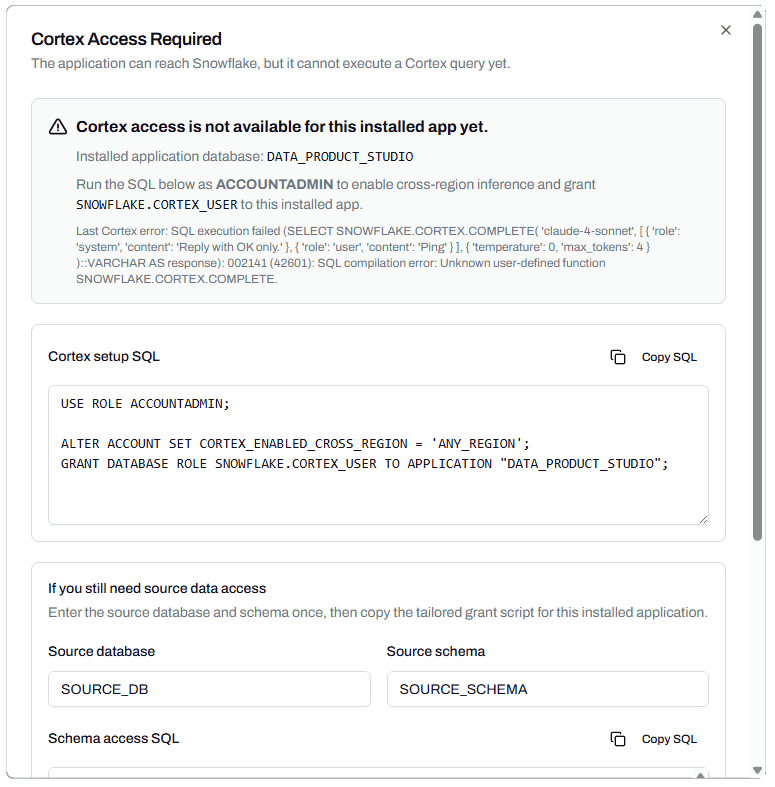
The app shows a Cortex Access Required notice if Cortex isn’t yet granted. The notice generates the SQL you need to run.
-
In the app, copy the Cortex setup SQL block. The SQL has your installed application name already filled in. It looks like this:
USE ROLE ACCOUNTADMIN; ALTER ACCOUNT SET CORTEX_ENABLED_CROSS_REGION = 'ANY_REGION'; GRANT DATABASE ROLE SNOWFLAKE.CORTEX_USER TO APPLICATION "DATA_PRODUCT_STUDIO"; -
Open a Snowflake worksheet in Snowsight. Switch to
ACCOUNTADMIN. -
Paste the SQL into the worksheet and run it.
-
Return to the app and reload. The Cortex notice should be gone.
The first statement, ALTER ACCOUNT SET CORTEX_ENABLED_CROSS_REGION = 'ANY_REGION', is an account-level setting. It tells Cortex it can use models hosted in regions other than your account’s home region. The Data Product Studio relies on this because not every Cortex model is available in every region. The setting applies to all Cortex usage in your account, not just the app.
The second statement grants the application the SNOWFLAKE.CORTEX_USER database role. This is the privilege that actually lets the app call Cortex functions.
Grant source data access
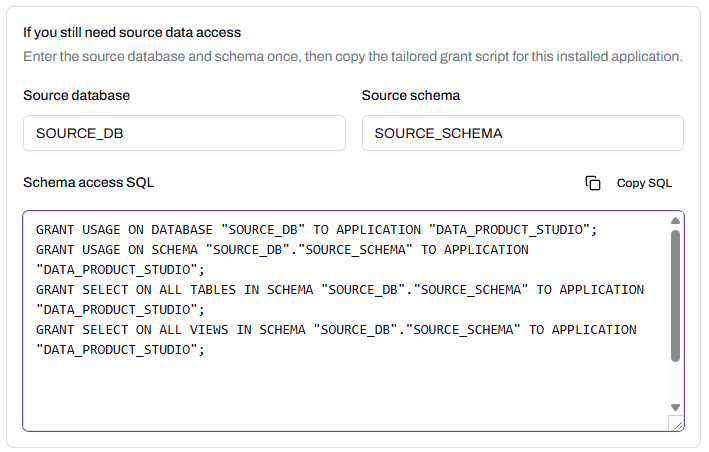
The same in-app modal includes a source data access section. You enter your source database and schema names; the app generates the grant script with the application name pre-filled.
-
In the app, type your source database name into Source database (for example,
LANDING_ZONE). -
Type your source schema name into Source schema (for example,
WORK_ORDERS). -
Click Copy SQL to copy the generated script. It looks like this:
GRANT USAGE ON DATABASE "LANDING_ZONE" TO APPLICATION "DATA_PRODUCT_STUDIO"; GRANT USAGE ON SCHEMA "LANDING_ZONE"."WORK_ORDERS" TO APPLICATION "DATA_PRODUCT_STUDIO"; GRANT SELECT ON ALL TABLES IN SCHEMA "LANDING_ZONE"."WORK_ORDERS" TO APPLICATION "DATA_PRODUCT_STUDIO"; GRANT SELECT ON ALL VIEWS IN SCHEMA "LANDING_ZONE"."WORK_ORDERS" TO APPLICATION "DATA_PRODUCT_STUDIO"; -
Paste the SQL into a Snowflake worksheet, switch to
ACCOUNTADMIN(or to a role that owns the source schema), and run it. -
Repeat for each source schema you want the studio to read.
Manual fallback: grant access without the in-app generator
If you’d rather not use the in-app generator, the same grants can be written by hand. Use the application name you chose during install in place of <application_name>.
For a single schema:
GRANT USAGE ON DATABASE <database_name>
  TO APPLICATION <application_name>;

GRANT USAGE ON SCHEMA <database_name>.<schema_name>
  TO APPLICATION <application_name>;

GRANT SELECT ON ALL TABLES IN SCHEMA <database_name>.<schema_name>
  TO APPLICATION <application_name>;

GRANT SELECT ON ALL VIEWS IN SCHEMA <database_name>.<schema_name>
  TO APPLICATION <application_name>;
For a whole database, replace SCHEMA <database_name>.<schema_name> with DATABASE <database_name> in the second, third, and fourth statements.
What happens next
The application can now reach Cortex and read the granted source data. Reload the app; the setup notices should be gone, and you can start defining your first data product.
Before that, confirm the warehouse and compute pool the install created. See Set up warehouses for the studio.
Troubleshooting
The Cortex SQL returns “Insufficient privileges to set CORTEX_ENABLED_CROSS_REGION”
Likely cause: your current role isn’t ACCOUNTADMIN. The cross-region inference setting is account-level and only ACCOUNTADMIN can change it.
Resolution: switch to ACCOUNTADMIN and re-run the statement.
Before contacting support: capture your current role and the failed statement.
The grant statement returns “Insufficient privileges”
Likely cause: your current role doesn’t have grant rights on the source database or schema.
Resolution: switch to ACCOUNTADMIN, or to the role that owns the database. Check ownership with:
SHOW DATABASES LIKE '<database_name>';The owner column shows the owning role. Use that role to run the grants, or have the object owner run them.
Before contacting support: capture the failed statement, your current role, and the output of SHOW DATABASES.
The studio can’t see a table I granted on
Likely cause: the table was created after the grant ran. The original GRANT SELECT ON ALL TABLES only covers tables that existed when it was run.
Resolution: re-run the GRANT SELECT ON ALL TABLES statement. For ongoing access to new tables, also add a future grant:
GRANT SELECT ON FUTURE TABLES IN SCHEMA <database_name>.<schema_name>
  TO APPLICATION <application_name>;
Before contacting support: capture the table name, the time it was created, and the time the original grant ran.
The app sees the table but reads return no rows
Likely cause: row access policies or masking policies on the source object are filtering rows when the application queries.
Resolution: review any row access or masking policies attached to the table. Either adjust the policy to include the application’s role, or grant the studio access to a view that exposes the rows you want it to see.
Before contacting support: capture the table name, the policies attached to it, and the role the studio runs queries under.
FAQs
Can I grant access to multiple schemas or databases?
Yes. Run the generated script (or the manual fallback) once per schema or database. The grants are additive.
Can I revoke access later?
Yes. Use REVOKE with the same object types you granted. Revoking access blocks the studio from reading those objects on its next operation.
Why does Cortex need cross-region inference enabled?
Not every Cortex model is hosted in every region. Cross-region inference lets your account use models from other regions when the local region doesn’t host them. Without it, some Cortex calls the studio makes will fail.
Can I grant Cortex access without enabling cross-region inference?
In some regions, yes. If your region hosts every Cortex model the studio uses, you can omit the ALTER ACCOUNT statement. If you’re unsure, enable cross-region inference. It has no downside for most accounts.
Related articles
- Prerequisite: Install from Snowflake Marketplace
- Sibling: Set up warehouses for the studio
- Next step: Set up warehouses for the studio
- Troubleshooting: Resolve role and permission errors
Search keywords
set up roles, grant Cortex access, CORTEX_USER, cross-region inference, grant source data, in-app SQL generator, GRANT USAGE, GRANT SELECT, application access, ACCOUNTADMIN grants, SNOWFLAKE.CORTEX_USER