Map source fields to model fields
After profiling, you decide which source fields load into the model and which fields uniquely identify a record. The Edit Source Table Mapping dialog covers both.
Applies to: Domain expert Detail level: Standard
Who this is for
You’ve profiled a source table and now you’re mapping its columns into the model. You’re working at the storage level, deciding what the platform should load.
There are two related dialogs in the Designer. The Edit Source Table Mapping dialog covers what gets loaded from the source. The Edit Model Field Mapping dialog covers what the loaded data becomes once it’s in the model. This article covers the first. See Configure model field mappings for the second.
Before you start
You’ll need:
- A profiled source table connected to a model on the canvas. See Profile a source table.
Open the dialog
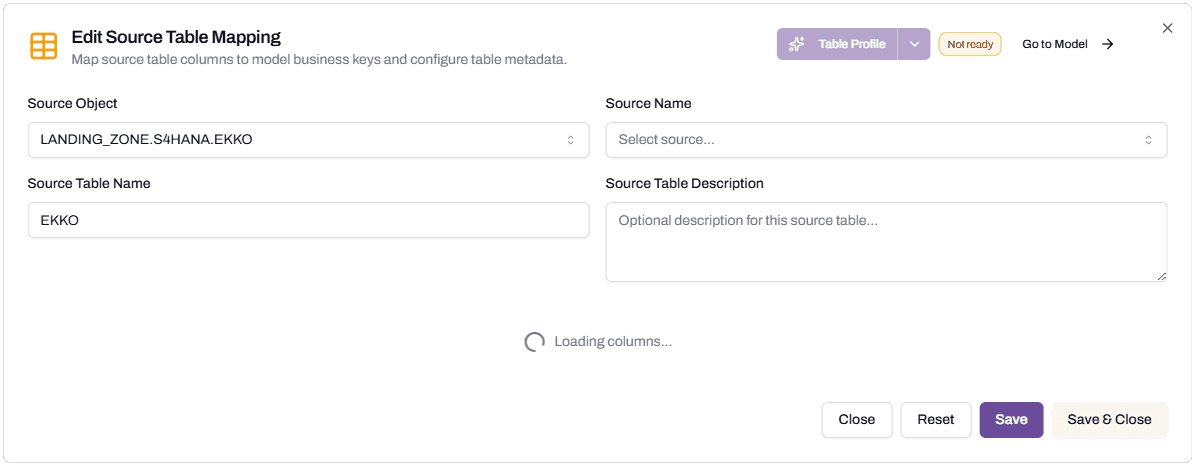
Click the source table card on the canvas to open Edit Source Table Mapping. The dialog has three areas:
- Header section with Source Object, Source Name, Source Table Name, and Source Table Description.
- Filter section with Delete Condition and Table filter.
- Field list showing every source column with a Load toggle, business key controls, and data type.
Header section
Source Object is the fully qualified Snowflake path: database, schema, table or view. It’s set when you connected the source table and is read-only here.
Source Name is the system the data comes from. SAP, Oracle, Pronto Xi, or a custom value you typed. The platform uses it to ground the field interpretation. See Profile a source table for why this matters.
Source Table Name is the human-readable name for this source within the model. The platform suggests one based on the table’s content (Purchase Order Header, Vendor Master). Rename it if the suggestion isn’t right.
Source Table Description is optional but useful. A one-sentence description of what this source carries shows up in the catalog and helps anyone reviewing the design later.
Business Key Definition
A model needs at least one Business Key: the field or fields that identify a record uniquely. The dialog has a row-level Add Business Key button.
The platform proposes business keys from the profile (often the source’s primary key column, like EBELN for SAP Purchase Orders). The proposed keys appear with a star icon next to the storage field name. You can add more, remove ones the platform proposed, or replace them with different fields.
Some patterns:
- A simple business key is one field, like Employee Number for an Employee model.
- A composite business key is two or more fields, like Purchase Order Number plus Line Number for a Purchase Order Line model.
- A business key with a foreign key relationship points another model at this one. Setting Contract_Header as a business key on a Purchase Order Header model creates the relationship that connects the two.
The Add Business Key button at the top of the field list opens a row that lets you pick a source field and assign its storage name. The star icon on each row toggles whether that field is part of the business key set.
Load toggles
Each row has a Load toggle. On means the source field will be loaded into the model; off means it won’t. The platform sets sensible defaults from the profile (recommended fields are on; deletion flags and audit fields are usually off).
Adjust the toggles based on what you actually need. Loading every source field is rarely useful and slows deployment. Loading too few fields means you’ll have to re-deploy when something is missing.
The bottom of the dialog has summary toggles: Hide excluded to clean up the view, and counters for Dimension and Fact counts.
Filter section
Two fields filter the rows the model loads.
Table filter is a WHERE clause expressed in SQL. The platform appends it to the load query. Use this when a source table contains rows you don’t want.
The most common case is an overloaded source table. SAP’s EKKO table contains every type of purchase document: Purchase Orders, Stock Transfer Orders, Contracts, Scheduling Agreements. A model called Purchase Order Header should load only Purchase Orders. A Table filter like BSART IN ('NB', 'ZNB') narrows the load to that document type.
The Table filter is manual. The platform doesn’t auto-suggest filters based on the profile. You decide what to include based on what your model represents.
Delete Condition is a Boolean expression that marks rows as deleted in the source. SAP soft-deletes by setting LOEKZ = ‘X’. A delete condition of LOEKZ = 'X' tells the platform to treat rows matching that condition as deletes when it loads.
Delete Condition is grounded in the table profile. If the platform recognises a deletion pattern, it can suggest one. For unfamiliar source structures, you set it manually.
What happens when you save
Click Save or Save & Close. The platform stores the mapping. The status indicator at the top of the dialog shows Ready when the mapping has everything it needs (a Source Name, a business key, at least one loaded field). It shows Not ready until those minimums are met.
A Not ready source table won’t block the canvas, but it will block publishing. Every model has to be Ready before its data product can be published.
What happens next
The source-side mapping is done. The next step is to look at how those loaded fields become model fields, and to add expressions or lookups where needed. See Configure model field mappings.
Troubleshooting
Save button is disabled
Likely cause: a required field is empty (Source Name, business key) or there’s a validation error.
Resolution: check that Source Name is set. Confirm at least one field is starred as a business key. If a Table filter is in place, confirm it’s valid SQL.
Before contacting support: capture the dialog’s state and the status indicator’s value (Ready or Not ready).
The platform’s suggested business key is wrong
Likely cause: the source table has multiple candidate keys, or the platform’s profile picked an unusual one.
Resolution: click the star icon on the proposed business key to remove it, then click the star on the field you want to be the key. For composite keys, star multiple fields.
Before contacting support: capture the source table name and the business key fields the platform proposed.
My filter SQL fails when the data loads
Likely cause: the Table filter or Delete Condition is invalid for the source table’s actual data, or it references a field name that doesn’t exist.
Resolution: source filters use Snowflake SQL syntax. Field names must match the source table’s column names exactly (case-sensitive in some configurations). Test the filter as a WHERE clause directly against the source table in a worksheet.
Before contacting support: capture the filter SQL, the source table name, and the error from the load attempt.
FAQs
Can I add a field to the load that wasn’t in the profile?
No. The Load toggles only cover columns the source table actually has. If a column was missing from the profile because it’s new, re-run the profile to pick it up.
What’s the difference between excluding a field and not loading it?
In this dialog, the Load toggle is what controls whether the field is read from the source. “Excluded” appears as a status when a field is set to not load. The terms are used interchangeably in the UI.
Can I write a complex Table filter with subqueries?
The Table filter is appended as a WHERE clause to the platform’s load query. Most standard SQL works. Subqueries can work but make the load query more complex, and they’re harder to debug. Where possible, prefer creating a Snowflake view that handles the complex logic and pointing the source picker at the view instead of the base table.
What if my source uses hard deletes instead of soft deletes?
If the source removes rows when records are deleted (rather than marking them with a flag), there’s no Delete Condition to set. Leave the field empty. The platform handles row disappearance through its incremental load logic.
Related articles
- Prerequisite: Profile a source table
- Sibling: Configure model field mappings
- Next step: Configure model field mappings
- Troubleshooting: Set up warehouses for the studio
Search keywords
source table mapping, business key, load toggle, table filter, delete condition, WHERE clause, soft delete, BSART, LOEKZ, business key definition