Configure model field mappings
Once source fields are loaded, you decide what each becomes in the model. The Edit Model Field Mapping dialog covers Dimension and Fact assignment, key types, and the Master Data flag.
Applies to: Domain expert Detail level: Standard
Who this is for
You’ve mapped source fields to load. Now you’re shaping the model that the loaded data feeds. The work here is mostly about classification: deciding what each field is for in the deployed dimensional model.
Before you start
You’ll need:
- A source table mapped to a model. See Map source fields to model fields.
- A clear sense of which fields are descriptive (Dimensions) and which are measurable (Facts) in this model.
Open the dialog
Click the model card on the canvas (not the source table card) to open Edit Model Field Mapping. The dialog has:
- Header with Model Name, Model Description, and the Is Master Data toggle.
- Field list showing each loaded field as a row with Source Field, Model Field, Dimension toggle, Fact toggle, and Type.
- Status indicator at the top right (Ready or Not ready).
- Add Expression button at the top right for adding computed fields. See Add SQL expressions to transform fields.
Header
Model Name is the business name for the model. The wizard sets it; you can rename it.
Model Description is optional. A one-sentence description of what this model represents in the deployed output.
Is Master Data is a Yes/No toggle. Setting it to Yes tells the platform this model produces only a dimension table, with no fact table. Use this for reference and master data: Vendor, Cost Centre, Material, Employee. Leave it No for transactional models that need both a dimension and a fact (Purchase Order Header, Invoice Line, Goods Receipt).
The toggle has a separate meaning from the Master Data data product the wizard groups reference entities into during Define. The data product grouping decides where the model lives. The Is Master Data toggle on the model decides what gets generated for it. The two often align (entities in the Master Data data product usually have Is Master Data set to Yes), but they’re set independently.
The field list
Each row represents one loaded field. The columns:
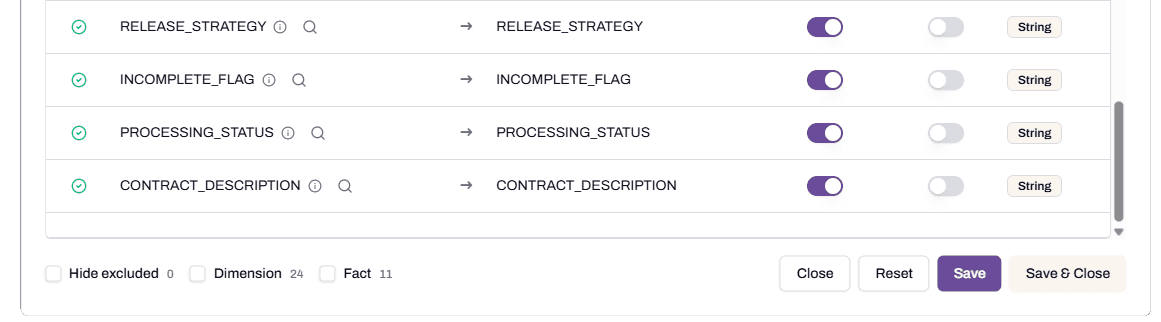
Source Field is the field as it came from the source. The info icon next to each shows the comment, profile samples, and recommendation. The magnifying-glass icon opens the Configure Lookup dialog for that field. See Add a lookup to translate codes.
Model Field is the name the field has in the deployed model. The platform suggests sensible names from the profile; you can override.
Dimension is a toggle. On means this field becomes a column in the dimension table. Off means it doesn’t.
Fact is a toggle. On means this field becomes a column in the fact table. Off means it doesn’t.
A field can be both Dimension and Fact, neither, or one of the two. Most fields are one or the other:
- Dimension only. Descriptive attributes that don’t have a numeric value. Vendor name, document type, status code.
- Fact only. Measurable values. Quantity ordered, net price, gross amount.
- Both. Identifiers that need to appear in both tables (the business key fields, primary key, document number).
- Neither. Audit fields you’ve loaded but don’t want in either output (created_by_user, ingest_time).
The Dimension and Fact column headers have header-level toggles. Clicking the header toggles the column for every row at once. Useful when you want most fields to be Dimensions and only flip a few to Fact.
Type indicates how the field contributes to the model structure: Primary Key, Secondary Key, String, Timestamp. Primary Keys come from the business key definition on the source mapping. Secondary Keys are the foreign keys that link this model to others. String, Timestamp, and other type tags reflect the column’s data type.
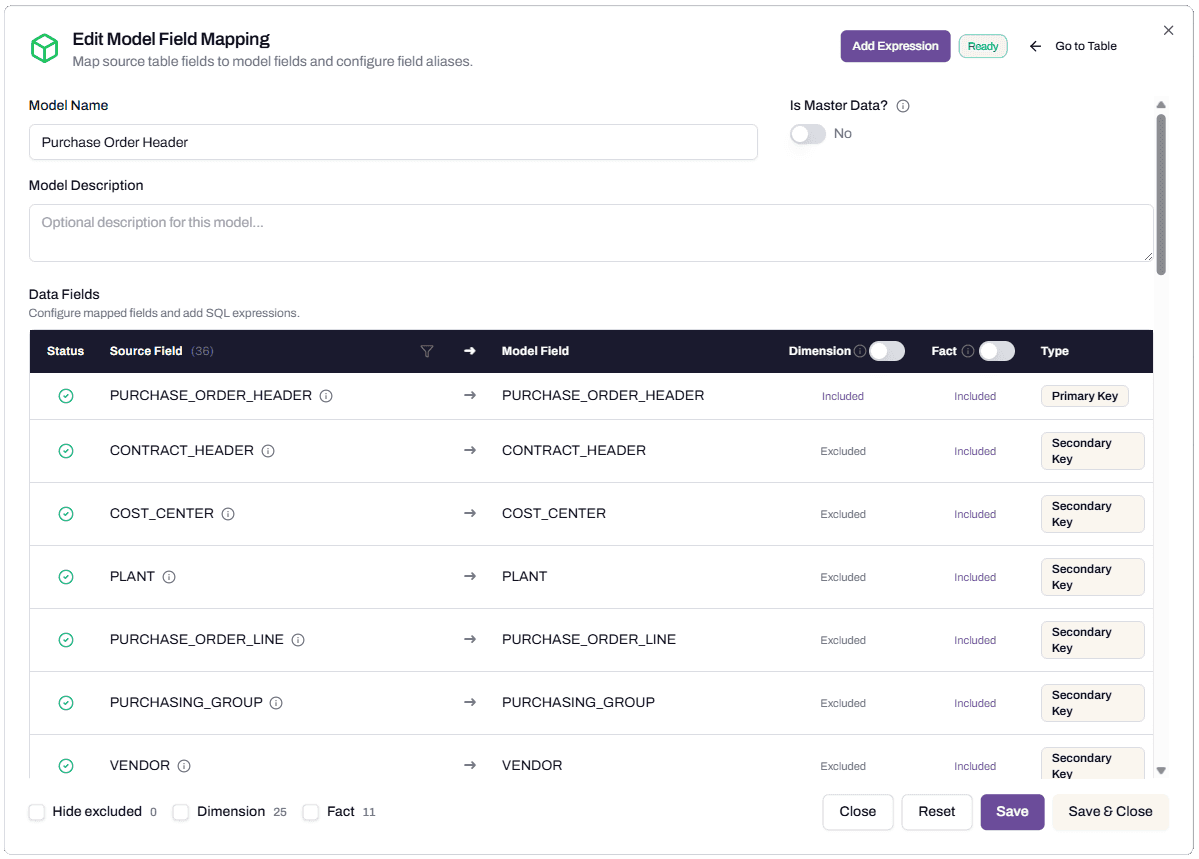
Excluded vs Included
The Dimension and Fact column cells show “Excluded” or “Included” as text labels for some rows (typically business key fields). Excluded means the field isn’t included in that table; Included means it is. The toggles drive these labels.
Business key fields default to being included in both Dimension and Fact tables, because they’re needed for joins. You can change this if your design requires it.
What happens when you save
Click Save or Save & Close. The platform stores the mapping. The status indicator shows Ready when:
- Model Name is set.
- The model has at least one Primary Key (from the source business key).
- Every loaded field has a Dimension or Fact assignment, or is explicitly Excluded.
A Not ready model blocks publishing.
What happens next
You’ve defined the model’s structure. From here, the optional steps are:
- Add SQL expressions to transform fields. See Add SQL expressions to transform fields.
- Add lookups to translate codes. See Add a lookup to translate codes.
- Use filters to narrow the rows. See Use filters and delete conditions.
When the model and source mappings are Ready, you can publish the data product. See Publish a data product.
Troubleshooting
A field has no Dimension or Fact toggle on, and the model is Not ready
Likely cause: a loaded field doesn’t have an assignment.
Resolution: turn on Dimension or Fact for the field, or turn off the Load toggle on the source side if you don’t actually need this field.
Before contacting support: capture the field name and the model’s status indicator.
The toggles for a row are greyed out
Likely cause: the row is a key field (Primary Key or Secondary Key) and its inclusion is determined by the business key definition rather than per-toggle.
Resolution: change the business key on the source side to adjust. See Map source fields to model fields.
I want a field to appear under a different name without changing the source
Likely cause: you want to alias a source field.
Resolution: edit the Model Field column to type the new name. The source remains as is; only the deployed column name changes.
FAQs
When should I set Is Master Data to Yes?
Set it to Yes when the model is reference data (Vendor, Cost Centre, Employee, Material, Plant) that doesn’t have measurable values. The model deploys as a dimension only.
Leave it No for transactional models that need a fact table for measures (quantities, amounts, counts) alongside the dimension.
What if I’m not sure whether a field is a Dimension or a Fact?
Default to Dimension for descriptive fields and Fact for numeric measures. If a field is genuinely both (a quantity that’s also descriptive of the record), turn both on. The platform handles the duplication correctly.
Can I add a field that doesn’t exist in the source?
Yes, with an expression. Use Add Expression to create a computed field with SQL or a natural-language prompt. See Add SQL expressions to transform fields.
Can I rename a field after publishing?
You can change the Model Field name and re-publish. Existing deployments stay until you re-deploy, at which point the Snowflake objects update to use the new name.
Related articles
- Prerequisite: Map source fields to model fields
- Sibling: Add SQL expressions to transform fields
- Next step: Add SQL expressions to transform fields
- Troubleshooting: Set up warehouses for the studio
Search keywords
model field mapping, dimension toggle, fact toggle, primary key, secondary key, master data toggle, model name, model field, included excluded, key type