Add SQL expressions to transform fields
Sometimes a model needs a field that doesn’t exist as a column in the source. A month bucket from a date, a calculated total, a normalised string. Add Expression lets you create that field with SQL or a natural-language prompt.
Applies to: Domain expert, Data engineer Detail level: Standard
Who this is for
You’re configuring a model and you need a field the source table doesn’t have directly. You can write SQL, or you can describe what you want and let the platform generate the SQL.
Before you start
You’ll need:
- An open Edit Model Field Mapping dialog. See Configure model field mappings.
- A clear sense of what the new field should compute and where its inputs come from.
Add an expression
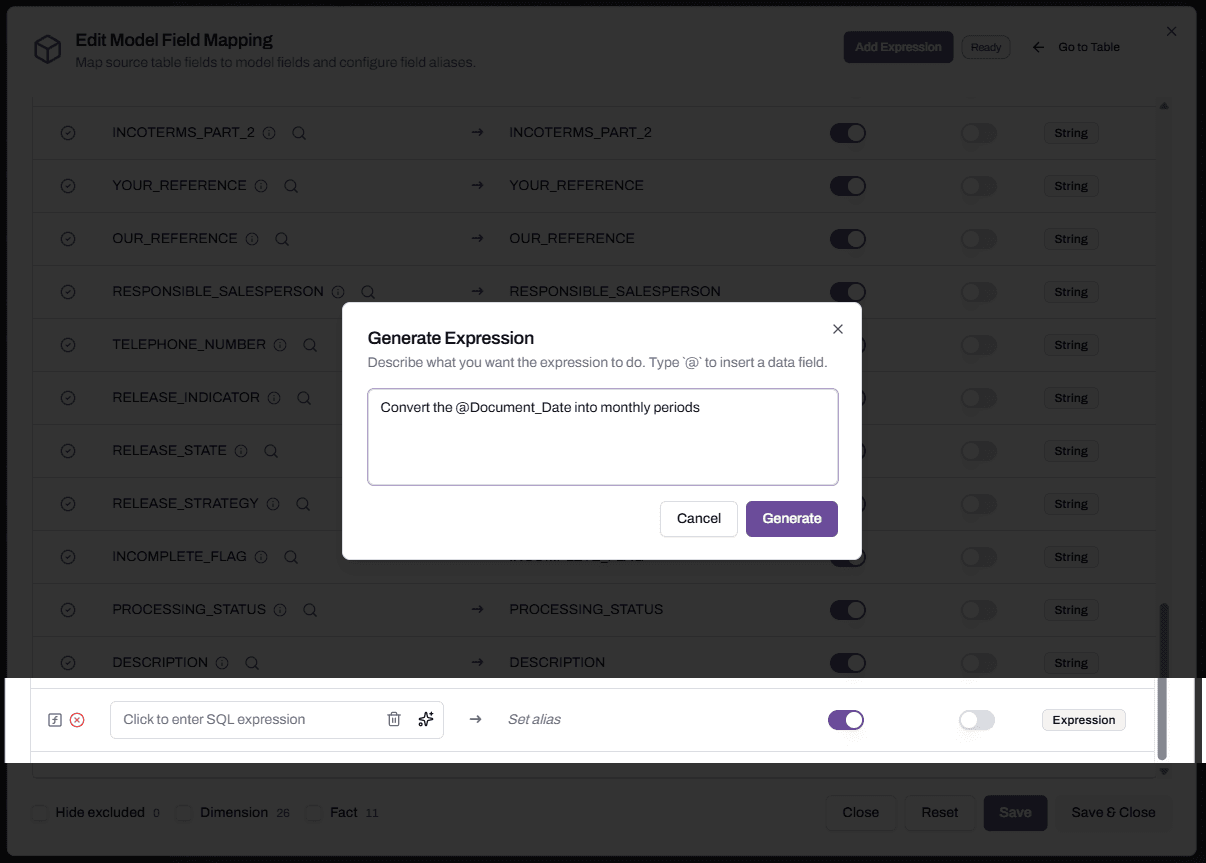
Click Add Expression at the top right of the dialog. A new expression row appears at the bottom of the field list. The row has:
- A function icon on the left.
- A SQL expression input.
- A delete button.
- A magic-wand icon (the AI generation trigger).
- An arrow pointing to a Set alias field.
- Dimension and Fact toggles.
- A Type indicator showing Expression.
The new row starts in error state because no expression and no alias have been set yet.
Path 1: write the SQL yourself
-
Click into the expression input. Type a SQL expression. The platform validates it against the source table’s columns. Reference fields by their source column names.
-
An example: to bucket a date column into months, type
DATE_TRUNC('MONTH', TRY_TO_DATE(DOCUMENT_DATE)). -
Tab to the alias field and type the model field name (DOCUMENT_MONTH).
-
Toggle Dimension or Fact based on what kind of field this should be.
-
The error indicator clears once the expression validates and the alias is set.

Path 2: generate the SQL with a prompt
Click the magic-wand icon next to the expression input. The Generate Expression dialog opens.
-
Describe what you want. Type a natural-language description. Be specific. “Convert the @Document_Date into monthly periods” works. “Date stuff” doesn’t.
-
Reference fields with @. Type
@and the platform shows a searchable list of the model’s data fields. Pick a field with the arrow keys and Enter, or keep typing the name to filter the list. The field gets inserted into your prompt with its name. -
Click Generate. The platform calls Cortex with your prompt, the field names you referenced, and the source table context. The result drops into the expression input. Review it before saving.
-
Set the alias and Dimension/Fact toggles as you would for a hand-written expression.
When the AI generation needs help
Two patterns to recognise:
The platform asks a clarifying question when your prompt is ambiguous. “Convert the @Document_Date into periods” doesn’t say what kind of period. The dialog will ask whether you want monthly, quarterly, weekly, or another grain. Answer the question and re-generate.
The generated expression errors when validated because the AI used the source field instead of the dimension or fact field. SAP source columns and the model’s dimension fields can have similar names, and the AI sometimes references the wrong one. Re-run with a more explicit prompt: “Convert @Document_Date from the dimension into monthly periods” usually fixes it. If it still errors, edit the SQL by hand.
In general, treat the AI as a starting point. It’s faster than writing common expressions from scratch, but it’s not a substitute for understanding what the SQL is doing.
Common expression patterns
Date bucketing.
DATE_TRUNC('MONTH', TRY_TO_DATE(DOCUMENT_DATE))Concatenation.
CONCAT(DOCUMENT_NUMBER, '-', LINE_NUMBER)Conditional bucketing.
CASE
  WHEN AMOUNT < 1000 THEN 'Small'
  WHEN AMOUNT < 10000 THEN 'Medium'
  ELSE 'Large'
END
Currency conversion (when both source columns exist).
NET_AMOUNT * EXCHANGE_RATENull handling.
COALESCE(VENDOR_NAME, 'Unknown Vendor')What happens when you save
The expression row joins the rest of the field list. From this point it behaves like any other model field: it has a name (the alias), Dimension and Fact assignments, a type marker. The deployed model includes the expression as a column.
Re-running profile or re-mapping the source doesn’t drop the expression. Expressions are model-level configuration; they survive source-level changes.
Troubleshooting
The expression validates but produces wrong values when deployed
Likely cause: the SQL uses a source column that exists but has values different from what you expected, or has type quirks.
Resolution: query the source table directly in a Snowflake worksheet to see what the column actually contains. Adjust the expression. The expression dialog only validates that the SQL parses; it doesn’t guarantee semantic correctness.
Before contacting support: capture the expression, the alias, an example of the wrong values, and an example of what you expected.
The Generate Expression dialog returns an error or times out
Likely cause: Cortex is unavailable, or the prompt was too vague for it to produce something usable.
Resolution: rephrase the prompt with more specificity. If Cortex itself is down, write the SQL by hand.
Before contacting support: capture the prompt text and any error message.
The @-reference doesn’t show the field I want
Likely cause: the field is on a different model, or it hasn’t been loaded into this model.
Resolution: expressions can only reference fields on the model they’re added to. To use a field from another model, either load that source column into this model too, or use a lookup. See Add a lookup to translate codes.
FAQs
Can I write expressions that reference multiple tables?
Not directly. Expressions are scoped to one model and its connected source(s). Cross-table logic goes into a Snowflake view that the platform reads as the source.
Can I edit an expression after saving?
Yes. Click into the expression row and edit either the SQL or the alias. Save again.
Can the AI improve an expression I wrote by hand?
Indirectly. Delete the row, click Add Expression again, and use Generate with a prompt that describes what you wrote. Compare the result. The AI sometimes spots simpler patterns.
Does the expression run during the load, or in the deployed view?
The platform optimises this: simple expressions are pushed into the load query; complex ones run as part of the dimensional view that the deployment creates. The behaviour is the same either way from the user’s point of view.
Related articles
- Prerequisite: Configure model field mappings
- Sibling: Add a lookup to translate codes
- Next step: Add a lookup to translate codes
- Troubleshooting: Set up warehouses for the studio
Search keywords
add expression, SQL expression, AI generate expression, natural language prompt, computed field, alias, expression row, generate SQL, cortex prompt, @ reference