Add a custom domain on the Configuration page
The platform ships with a set of built-in domains covering common business areas. When the area you’re working in isn’t covered, add a custom domain.
Applies to: Data team lead Detail level: Standard
Who this is for
You’re setting up a data product for a business area the platform doesn’t ship with, or you’re standardising your organisation’s domain catalogue. You have access to Settings > Domains.
Before you start
You’ll need:
- The Data Product Studio installed and a role with access to Settings.
- A short code for the domain (three to five letters, must be unique).
- A descriptive name and a one-sentence description.
You should have already read:
Steps
-
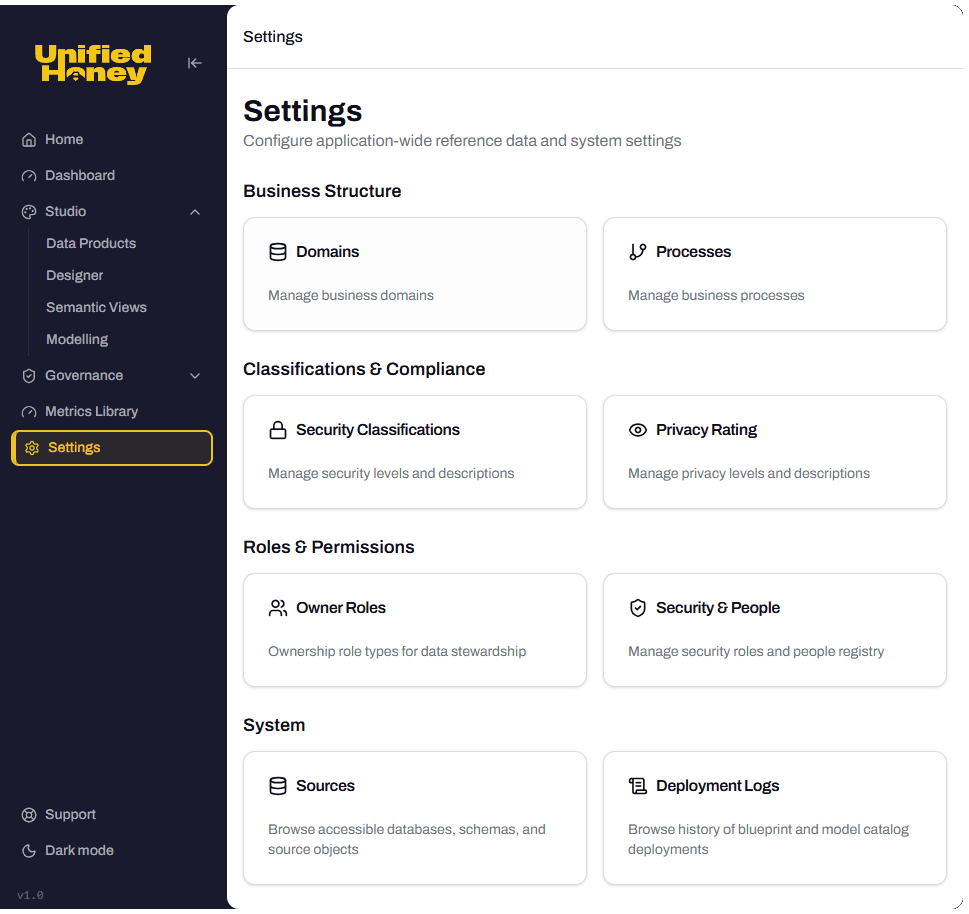
From the studio, open Settings. The Settings page lists configuration sections grouped by area.
-
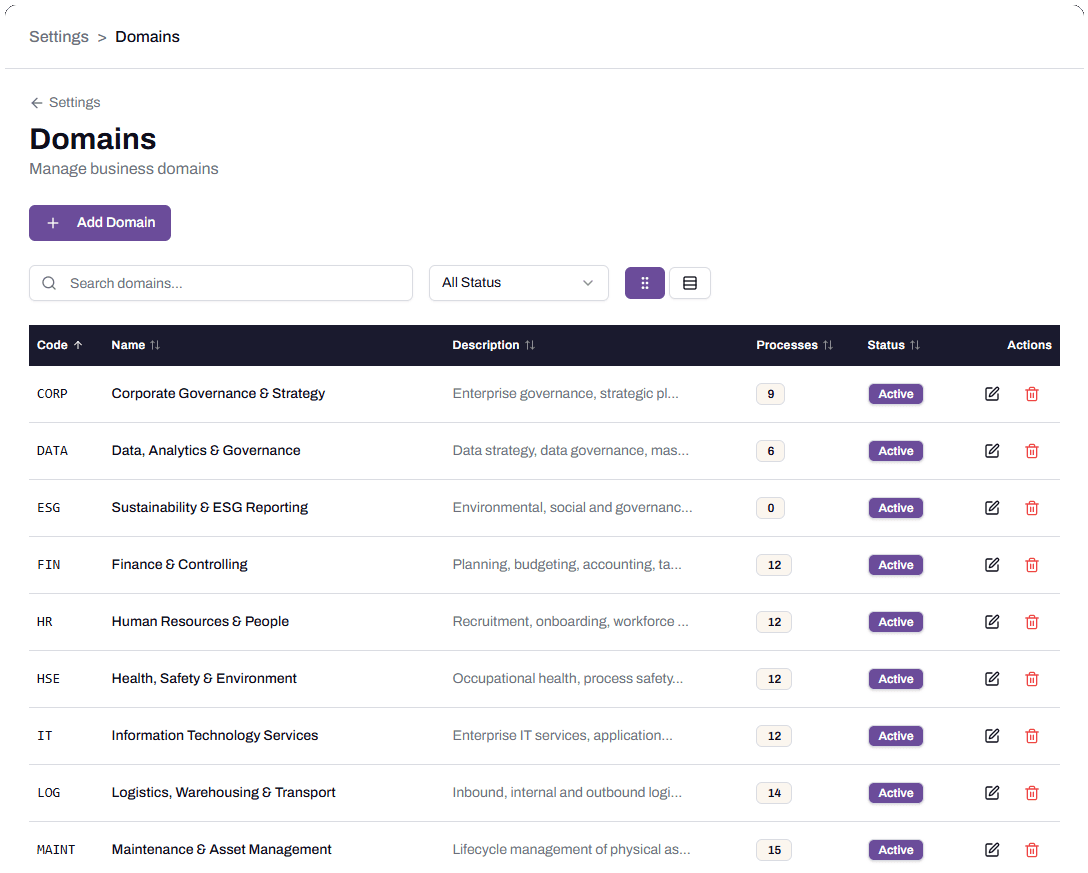
In the Business Structure section, click Domains. The Domains page lists every built-in and custom domain.
-
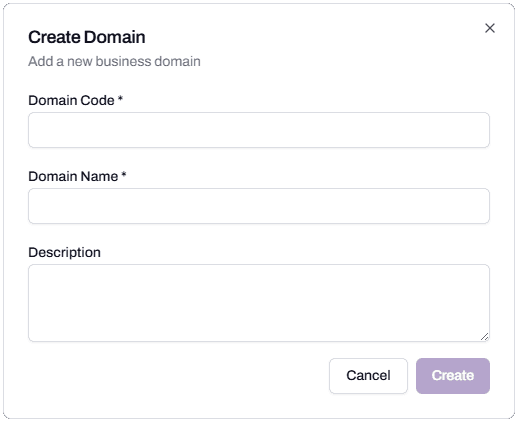
Click Add Domain in the top left. The Create Domain dialog opens.
-
Fill in Domain Code. The code identifies the domain in lists, exports, and imports. It must be unique across the account. Use three to five letters that match the domain’s purpose: PROC for Procurement, FIN for Finance, HR for Human Resources. Codes are case-insensitive.
-
Fill in Domain Name. The display name shown in dropdowns and lists. Use the full business name, including any qualifier that distinguishes it from related domains. “Procurement and Supply Chain” rather than “Procurement” if your organisation also has a separate Procurement Operations domain.
-
Fill in Description. One or two sentences describing what the domain covers. The description appears on the domain selection screens and is sent to Cortex as part of context. A good description names the activities the domain owns: “Strategic sourcing, purchasing, contract management, and supplier collaboration across the value chain.”
-
Click Create. The domain is added and appears in the Domains list with status Active. It also becomes selectable in the Discovery Wizard’s Domain dropdown immediately.
What happens next
The new domain is available for the Discovery Wizard. To use it, run the wizard, pick the new domain in Step 1, and proceed as normal.
The platform has less Cortex grounding behind a custom domain than a built-in one, so the description you wrote in Step 6 does more of the work. If entity generation comes back generic when you use the custom domain, expand the description with more specific activities and re-run.
To use the new domain, you’ll usually want to add at least one process within it. See Add a custom process within a domain.
Troubleshooting
Create button is disabled
Likely cause: a required field is empty, or the Domain Code conflicts with an existing domain.
Resolution: confirm Domain Code, Domain Name, and Description are filled. Check the Domains list for an existing domain with the same code. Codes are case-insensitive, so PROC and Proc count as the same.
Before contacting support: capture the values in each field and a screenshot of the dialog.
Custom domain works in Settings but doesn’t appear in the wizard
Likely cause: the wizard was open before the domain was created. The Domain dropdown is loaded when the wizard opens.
Resolution: close the wizard and open it again. The dropdown reloads on each open.
Before contacting support: capture the time the domain was created and the time you opened the wizard.
Entity generation using the custom domain returns generic output
Likely cause: the domain’s description is too sparse, so Cortex has nothing specific to ground on.
Resolution: edit the domain in Settings > Domains and expand the description. Name three to five activities the domain covers. Save and re-run the wizard.
Before contacting support: capture the domain’s description text, the wizard inputs, and a screenshot of the entity list.
FAQs
Can I rename a domain after creating it?
Yes. Click the edit icon on the domain row in Settings > Domains to open the Edit Domain dialog. It uses the same fields as the Create Domain dialog (Domain Code, Domain Name, and Description), pre-populated with the existing values. The Domain Code is editable when no processes use it; once a process exists under the domain, the code is locked.
Can I delete a domain?
Yes, from Settings > Domains, but only when no processes reference it. Move or delete the dependent processes first.
What happens to processes under a domain if I deactivate the domain?
The processes stay configured but don’t appear in the wizard’s Process dropdown until the domain is reactivated. Deactivating is reversible.
Should I create a domain per business unit, or per business area?
By business area. A domain represents a body of business activity (Finance, HR, Maintenance), not an organisational structure. Two business units doing the same kind of work share a domain.
Related articles
- Prerequisite: Choose a domain and process
- Sibling: Add a custom process within a domain
- Next step: Discovery Wizard walkthrough
- Troubleshooting: Resolve generation failures in the studio
Search keywords
custom domain, add domain, configure domain, settings domains, domain code, domain name, business domain, configuration page