Overview: the Designer
The Designer is the canvas where you connect source data to the data products the wizard generated, refine the structure, and prepare the result for deployment to Snowflake. This article covers what’s on the canvas and what each part is for.
Applies to: Domain expert, Data engineer
What the canvas shows
Open the Designer and pick a data product. The canvas shows three groups of elements connected left to right.
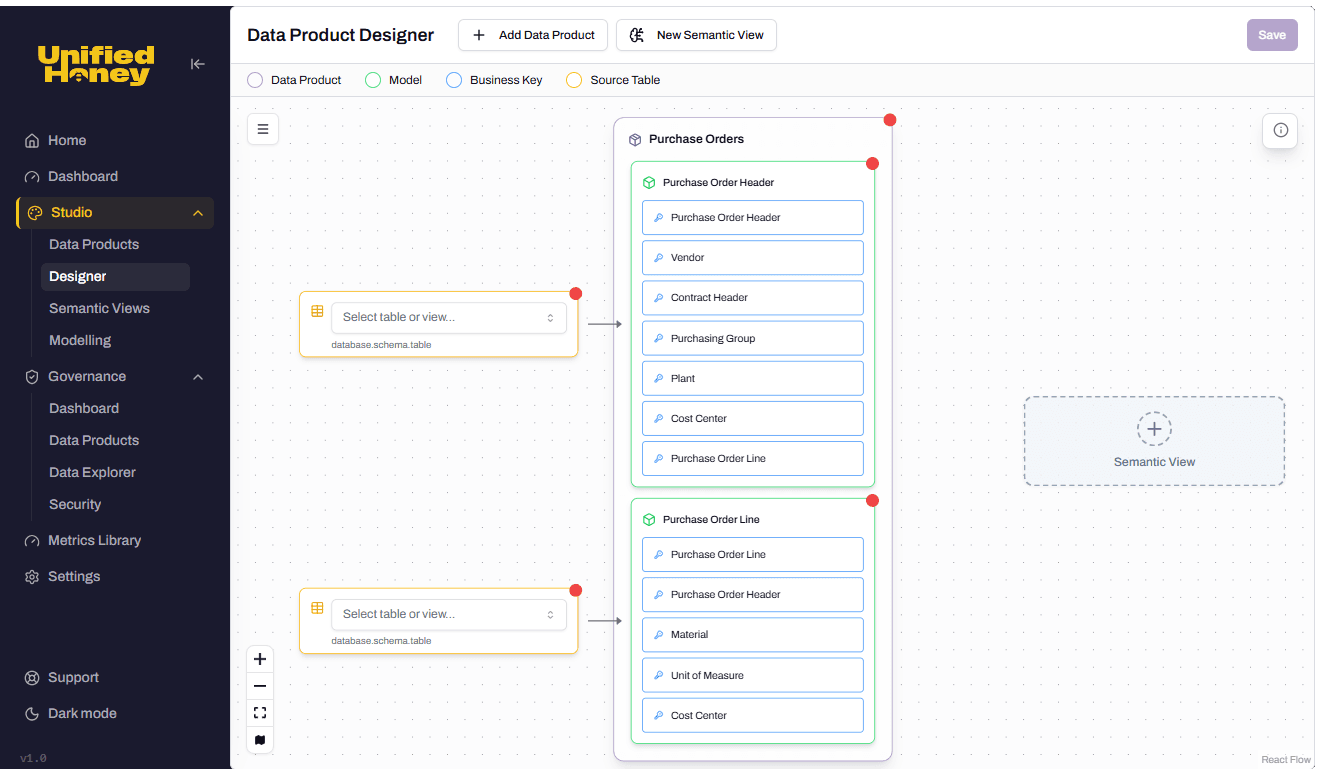
Source tables sit on the left. Each is a card you fill in to point the platform at a real Snowflake table or view (for example, LANDING_ZONE.S4HANA.EKKO). Until a source table is connected, the platform has nothing to map from.
Models sit in the middle, grouped inside a data product wrapper. Each model represents one logical table in the deployed output. A model has a list of fields that will be loaded from a source. The blue entries on each model are the business keys, which identify a record uniquely and form the relationships between models.
Semantic Views and dependencies sit on the right. A semantic view aggregates several models into a deployable object. A data product can also reference models from another data product as a read-only dependency, shown as its own card.
A colour key sits above the canvas: Data Product, Model, Business Key, Source Table. The same colours appear on the cards.
Models, not entities
In Define and in the wizard, the platform talks about entities. On the Designer, those same things are called models.
The two terms refer to the same objects but at different stages. An entity is the business concept (Purchase Order Header, the thing the process works with). A model is the same concept after it has source data attached and is ready to load. The shift happens when you open the Designer, because from this point on the conversation is about data, not just business meaning.
What you do here
Roughly in order:
- Connect a source table to a model.
- Profile the source table to see what’s in it.
- Map source fields to model fields.
- Add expressions and lookups to clean up or transform the values.
- Use filters to narrow the rows the platform reads.
- Publish the data product to convert your design into a deployable blueprint.
- Deploy the blueprint to Snowflake.
Each step has its own article. The order isn’t strict; you can move between steps as you refine the design.
Ready and Not ready
Models, source tables, and the data product as a whole each carry a status: Ready or Not ready. Ready means the configuration is complete enough that the platform can build a blueprint from it. Not ready means something is missing, usually a business key, a primary key, or a source table that hasn’t been connected yet.
The Save button on the canvas stays disabled until what’s on screen is in a savable state. Publishing requires every model in the data product to be Ready.
When to come here vs the wizard
The wizard creates a starting structure. The Designer is where you make it match your data.
Come here when:
- You’re connecting source data for the first time after running the wizard.
- You need to add or remove a model from a data product the wizard generated.
- You want to add an expression or a lookup to a field.
- You’re ready to publish and deploy.
If a data product needs significant rework (wrong process, wrong domain, missing core entities), it’s usually faster to delete it and re-run the wizard with better context than to fix it on the canvas.
What the canvas doesn’t do
Two things you might expect on the canvas that live elsewhere:
- Governance values for the data product itself (security classification, privacy rating, data ownership) are edited at Governance > Data Products, not on the canvas. The Designer assumes the wizard set these values and focuses on the data side.
- Semantic views and metrics appear on the canvas as deployment targets, but they’re created and managed on Semantic Views and Metrics Library in the sidebar.