Connect a source table to a model
Each model on the canvas needs a source table before it can be loaded. This article walks through connecting the two.
Applies to: Domain expert Detail level: Standard
Who this is for
You’ve run the wizard and opened the Designer. You can see your data product on the canvas with a set of models inside it, and source picker cards on the left waiting to be filled in. You know which Snowflake table or view holds the data each model needs.
Before you start
You’ll need:
- A data product on the canvas. See Open the Designer for a data product.
- The platform granted access to the source database you’ll read from. See Set up roles for the studio.
- A clear idea of which source table feeds each model. The wizard’s process map and the entity descriptions are useful references if you’re not sure.
Steps
-
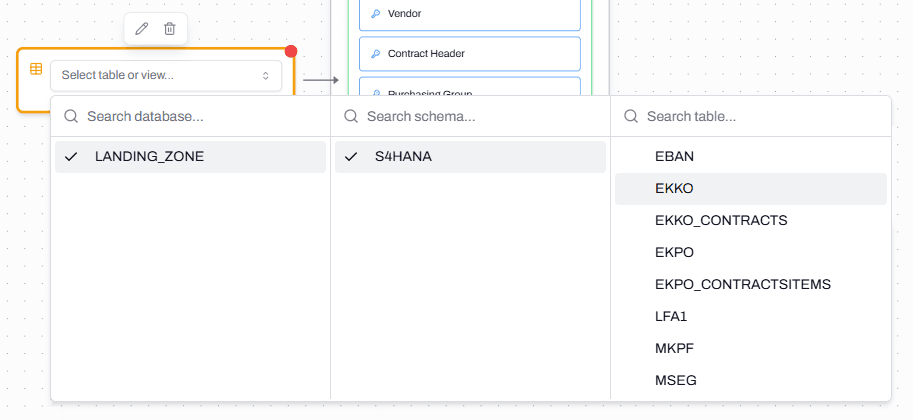
On the canvas, find the source table picker card to the left of the model you want to connect. It shows Select table or view… until something is picked.
-
Click the picker. A three-column dropdown opens, showing Search database, Search schema, and Search table.
-
Pick the database. The list shows every database the platform can read. If the database you need isn’t on the list, see the troubleshooting section below.
-
Pick the schema. The middle column updates to show schemas in the chosen database.
-
Pick the table or view. The right column lists every table and view in the chosen schema. Most source tables in a Snowflake environment have terse system names (EKKO, EKPO, LFA1 for SAP); the search field at the top of the column helps if you know the name.
-
The picker closes. The card now shows the source table name (for example,
LANDING_ZONE.S4HANA.EKKO). -
The card connects to its model with a line. The connection isn’t yet a mapping; it’s a pointer. The platform now knows where to look. The next step is to profile the table.
What happens next
The source table is connected but no fields are mapped yet. The next step is to profile the table to see what’s in it, then map source fields to model fields.
See Profile a source table for the next step.
Troubleshooting
The database I need isn’t in the list
Likely cause: the platform’s application doesn’t have access to that database.
Resolution: a Snowflake admin needs to grant the application USAGE on the database and SELECT on the tables you need. The grant is documented in Set up roles for the studio. After the grant runs, close and reopen the source picker so the database list reloads.
Before contacting support: capture the database name, your current Snowflake role, and the time you tried to access it.
The schema is in the list but the table I need isn’t
Likely cause: the table exists in Snowflake but the application’s grants cover only some tables in the schema, or the table was created after the grant ran.
Resolution: ask a Snowflake admin to re-run GRANT SELECT ON ALL TABLES IN SCHEMA <database>.<schema>. For ongoing access to new tables, also add a future grant. See Set up roles for the studio for the SQL.
Before contacting support: capture the schema name, the table name, and the time the original grants ran.
I picked the wrong table
Likely cause: easy mistake; tables in source systems often have similar codes.
Resolution: click the picker on the source card again and pick a different table. The connection updates. Any field mappings you’ve already done on this model will need to be redone if the new table has different columns.
FAQs
Can one model use more than one source table?
Yes. You can add a second source picker card and point it at a different table that feeds the same model. Use this when a model needs a join across two source tables.
Can two models use the same source table?
Yes. Each model is mapped independently. A common pattern is mapping EKKO once for a Purchase Order Header model and again for a Stock Transfer Order model, then using table filters to separate them.
What if the source data lives in a view, not a table?
Views work the same way. Pick the view from the right column of the picker.
What if I need source data from outside Snowflake?
The Data Product Studio reads from Snowflake only. If the data lives elsewhere (a SaaS system, a file system, an external database), it has to be loaded into Snowflake first. Snowflake’s standard ingestion options apply: Snowpipe, COPY, third-party loaders, or whatever your account already uses.
Related articles
- Prerequisite: Open the Designer for a data product
- Sibling: Profile a source table
- Next step: Profile a source table
- Troubleshooting: Set up roles for the studio
Search keywords
connect source table, select table or view, source picker, database schema table, point model at source, source data