Publish a data product
Publishing a data product converts the design on the canvas into a blueprint of dimensional models that can be deployed to Snowflake. This article covers when to publish and what happens.
Applies to: Domain expert
What publishing does
Up to the point of publishing, your data product exists as a design: a set of models, source mappings, expressions, lookups, and filters held as a JSON configuration. The design is editable but not yet a deployable artefact.
Publishing converts the JSON into a blueprint and a dimensional model configuration. The blueprint is the spec the platform uses to create real Snowflake objects. After publishing, the data product is ready to be deployed.
Publishing doesn’t deploy. It produces the blueprint; deployment is a separate step. See Deploy a data product to Snowflake for that.
Before you publish
The data product must be Ready. That means:
- Every model has a Source Name set.
- Every model has at least one business key.
- Every loaded source field is assigned to Dimension, Fact, or explicitly excluded.
- Every model field has a name.
- Every source table mapping is complete.
The status indicator on each model and source table shows Ready or Not ready. Hover the data product wrapper card to see the rolled-up status.
The Save button on the canvas stays disabled until everything is in a savable state. Save before publishing to confirm your latest changes are stored.
How to publish
-
Hover the data product wrapper card on the canvas. A small toolbar appears at the top of the wrapper with edit, add, publish, collapse, and delete icons.
-
Click the publish icon (the upward-arrow icon).

- The Publish Data Product confirmation dialog appears. It names the data product and explains what publishing will do: convert the JSON configuration into a blueprint and dimensional model configuration.
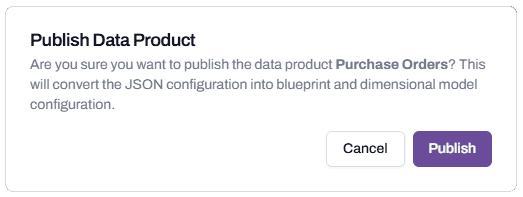
- Click Publish. The platform processes the JSON, validates it against the blueprint schema, and produces the deployable artefact. The data product’s status updates.
After publishing
The data product now has a published blueprint. Two things change.
The data product is deployable. The Deploy action becomes available. See Deploy a data product to Snowflake.
The published blueprint becomes the reference state for any future re-publish. If you make changes on the canvas after publishing and re-publish, the new blueprint replaces the old one.
Publishing doesn’t create anything in Snowflake. The objects only exist after a deployment runs.
When to re-publish
Re-publish whenever you’ve made changes you want to deploy.
Common cases:
- You added a model, expression, or lookup.
- You changed a Table filter or a business key.
- You renamed a field or changed Dimension/Fact assignments.
- You fixed something the deployment surfaced as an error.
A common pattern is publish, deploy, find an issue, fix it, re-publish, re-deploy. The platform handles incremental changes correctly.
Troubleshooting
The publish icon is greyed out
Likely cause: the data product isn’t Ready. One or more models or source tables have a Not ready status.
Resolution: open each model and source table that shows Not ready and address what’s missing. The status indicator at the top of each dialog shows the current state.
Publish fails with a validation error
Likely cause: the JSON configuration has a structural problem that Ready status didn’t catch. Most often a circular reference between models, or a business key field that exists on the source but doesn’t appear in the loaded set.
Resolution: read the error to see which model is at fault. Open that model’s mapping and confirm the business key field is loaded.
Before contacting support: capture the data product name, the error message, and the model the error references.