Add a lookup to translate codes
Source systems often store information as short codes that mean nothing on their own. A lookup joins a code to a readable descriptor from another table, so the deployed model carries both.
Applies to: Domain expert Detail level: Standard
Who this is for
You’re configuring a model and one or more fields are codes that need translating. The descriptor lives in a separate table, often a configuration or master data table from the source system.
Why a lookup, not just an expression
Codes can be translated with a CASE expression, but only when the set of values is small and stable. A lookup is the right tool when:
- The translation table has many values (hundreds of cost centres, thousands of materials).
- The translations change over time and you don’t want to update SQL when they do.
- The descriptor lives in a real source table that’s already maintained as a master data set.
If the translation is a fixed mapping with five or six values, a CASE expression in Add SQL expressions to transform fields is simpler.
Before you start
You’ll need:
- An open Edit Model Field Mapping dialog with at least one field that’s a code needing translation. See Configure model field mappings.
- The Snowflake table or view that holds the code-to-descriptor mapping.
- Read access to that lookup table, granted to the application.
Open the Configure Lookup dialog
In the Edit Model Field Mapping dialog, find the row for the code field you want to translate. Click the magnifying-glass icon next to the source field name. The Configure Lookup dialog opens.
The dialog has four fields and a Validate button.
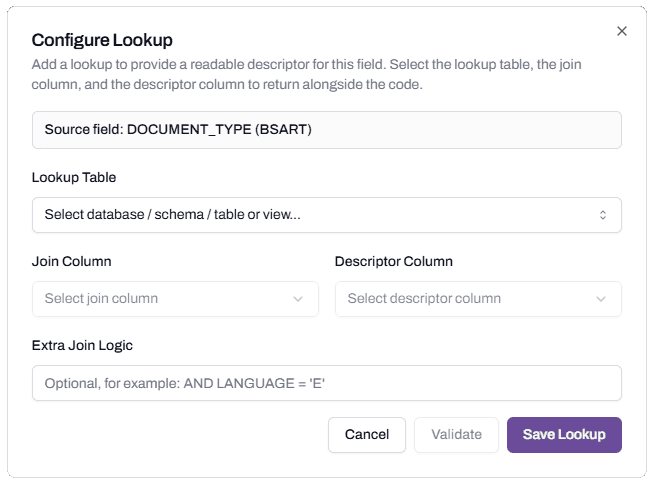
Fill in the dialog
Source field is read-only. It shows the field on this model that the lookup is for, including both its model name and the source column name.
Lookup Table is a database/schema/table picker. Pick the table or view that holds the code-to-descriptor mapping. The picker behaves the same as the main source picker on the canvas. SAP’s T161T table holds document type descriptions; T024 holds purchasing group descriptions; KNA1 holds customer master data with names alongside codes.
Join Column is the column in the lookup table that contains the matching code. For SAP’s T161T, that’s BSART (the same name as the field on the model in this case). The picker filters to columns from the chosen lookup table.
Descriptor Column is the column in the lookup table that holds the readable text. For T161T, that’s BATXT. The platform will join the lookup table to the model and bring this column in alongside the code.
Extra Join Logic is optional SQL added to the join. Use this when the lookup table needs a filter to return the right row. SAP’s text tables typically include a language column; AND LANGUAGE = 'E' restricts the join to English descriptors. Other source systems have similar patterns: a tenant ID, a date range, a status flag.
Validate before saving
Click Validate. The platform checks that:
- The lookup table is reachable.
- The Join Column and Descriptor Column exist.
- The Extra Join Logic, if provided, parses as valid SQL.
If any check fails, the dialog shows the error. Fix and re-validate.
When validation passes, click Save Lookup.
What happens after saving
The model field row updates to show the lookup is configured. The deployed dimension table will include both the original code and the descriptor, typically with a suffix like _TEXT or _DESCRIPTION on the descriptor column.
The lookup is part of the model’s structure. It travels with the model when published and deployed. Re-deploying applies any changes you make to the lookup configuration.
Common lookup patterns
SAP text tables. Most SAP code columns have a parallel text table for descriptions. T161T for document types. T024 for purchasing groups. T037A for accounting codes. The pattern is the same: code column matches code column, text column carries the description, language filter restricts to one locale.
Master data lookups. Vendor codes (LFA1.LIFNR) join to vendor names (LFA1.NAME1). Material codes (MARA.MATNR) join to material descriptions (MAKT.MAKTX with a language filter). Plant codes (T001W.WERKS) join to plant names (T001W.NAME1).
Custom code tables. Many organisations keep their own lookup tables for codes that don’t have a system-supplied descriptor. Pick the custom table from the picker and configure as normal.
Troubleshooting
The lookup table I need isn’t in the picker
Likely cause: the platform’s application doesn’t have access to the database or schema that contains the lookup table.
Resolution: a Snowflake admin needs to grant the application USAGE on the database and SELECT on the lookup table. See Set up roles for the studio.
Before contacting support: capture the database, schema, and table name; your current Snowflake role; and the time you tried to access the picker.
Validation fails with “Join column does not exist”
Likely cause: the column name was typed wrong, or the lookup table has the column under a different name than expected.
Resolution: open the lookup table in Snowsight to confirm the actual column names. The picker should help here; if you typed the column manually, replace with a picked value.
Before contacting support: capture the lookup table’s column list and the value entered as Join Column.
The deployed model has the descriptor column but every value is null
Likely cause: the join is matching no rows, usually because of a missing or wrong Extra Join Logic filter (most often a language code), or a data type mismatch.
Resolution: query the lookup table directly with a sample code from the source data. If no rows return without a filter, the data type may be the issue (string vs number, padded vs unpadded). If rows return without a language filter but not with one, adjust the language code.
Before contacting support: capture an example code value, the lookup table’s row for that code, and the Extra Join Logic value.
FAQs
Can I configure more than one lookup per field?
No. Each source field has at most one lookup. If the descriptor needs more than one join (for example, a hierarchical code that joins to one table for the parent code and another for the description), use a Snowflake view that handles the chained join, and point the lookup at the view.
Can two model fields share a lookup?
Each lookup is configured per model field. If two fields use the same translation logic, configure each independently. The platform handles both joins efficiently in the load query.
Will adding a lookup slow down the deployment?
Lookup joins add steps to the load query. The cost is small for typical lookup tables (thousands or tens of thousands of rows). For very large lookup tables, the platform’s warehouse handles the join but it does add time to the initial load.
What happens if the descriptor changes in the source?
On the next deployment, the new descriptor flows through. The platform doesn’t cache lookup values; each load reads the current state of the lookup table.
Related articles
- Prerequisite: Configure model field mappings
- Sibling: Add SQL expressions to transform fields
- Next step: Use filters and delete conditions
- Troubleshooting: Set up roles for the studio
Search keywords
configure lookup, lookup table, join column, descriptor column, extra join logic, code translation, SAP text table, T161T, language filter, lookup join