Generate a process map
Alongside the entity list, the platform produces a process map. It’s a visual representation of the process flow with the generated entities positioned along the path. This article covers what the map shows and how to use it.
Applies to: Domain expert
What the map shows
The process map is generated when you switch to the Process Visualization tab. It uses a swim-lane layout based on BPMN conventions: horizontal lanes group related activities, and the flow runs left to right.
Each node on the map is one of:
- An activity. A step in the process, such as Create Purchase Requisition or Approve Requisition.
- A decision. A branching point, such as Contract Available?, with separate paths for Yes and No.
- A start or end marker. Where the process begins and where it concludes.
Connecting lines show the flow between nodes. The arrows indicate direction.
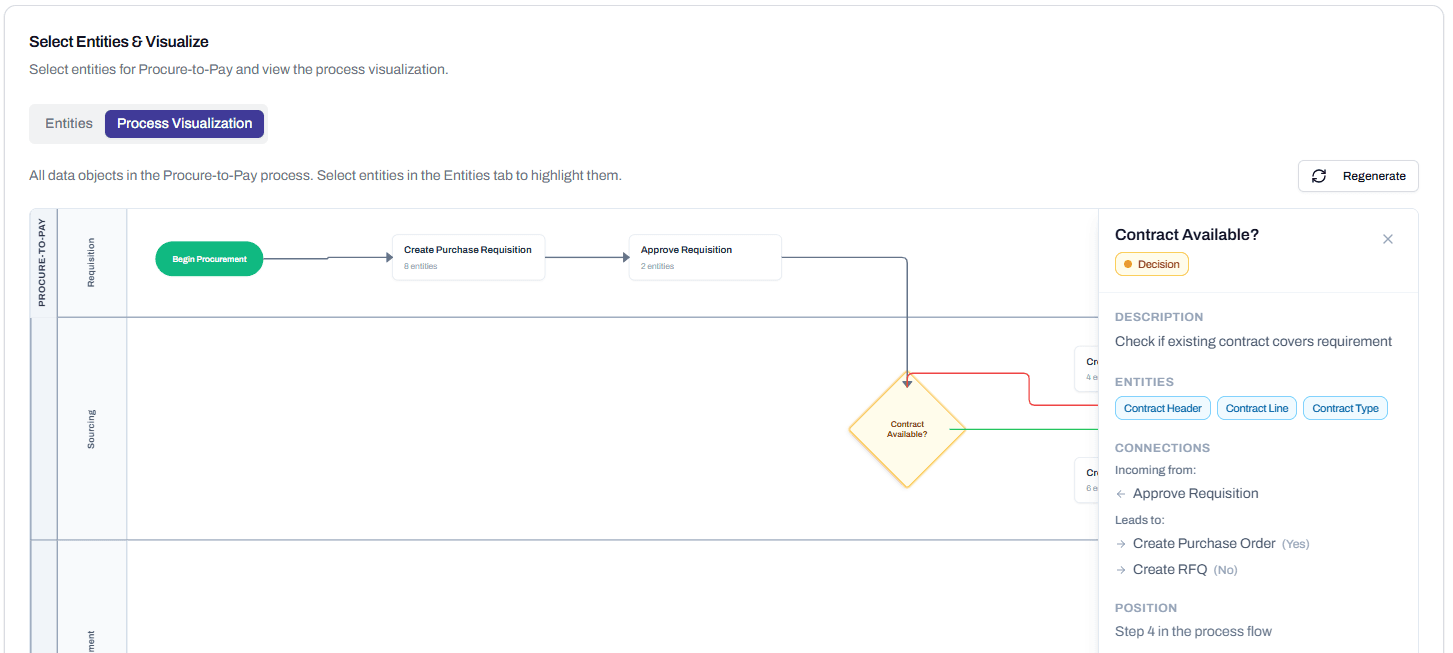
What clicking a node reveals
Click any node to open the detail panel on the right. The panel shows:
- Description. What this node represents in the process.
- Entities. Which entities the node touches. For Contract Available?, that’s Contract Header, Contract Line, and Contract Type.
- Connections. Which nodes lead in, and which the node leads to. Decision nodes show both paths labelled.
- Position. Where the node sits in the overall flow.
The panel is read-only. It’s there to help you confirm the map matches how the process actually runs.
Why the map is useful
The map serves two purposes during the Define stage.
It validates the entity list. If an entity you expected isn’t shown on any node, the platform might not have generated it. Switch back to the Entities tab and check.
It catches structural problems early. If the flow goes through Approve Requisition before Create Requisition, the platform has misunderstood the process. That’s a stronger signal than scanning a long entity list, because the visual jump-out is immediate.
The map is also a useful artefact in its own right. Stakeholders who don’t read the entity list often understand the map at a glance.
Regenerate
If the map doesn’t match how the process actually runs, click Regenerate. The platform calls Cortex again with the same Step 1 inputs and the entities you’ve selected, plus a prompt focused on the visualisation specifically.
Regeneration usually helps when the first map is structurally wrong: missing branches, incorrect ordering, or activities collapsed into one node that should be separate. It usually doesn’t help when the issue is naming or wording, because Cortex tends to produce similar names from similar prompts.
If two regenerations produce maps that are both wrong in similar ways, the issue is in your context input rather than the map. Go back to Step 1, expand the Describe Requirements text with the variations specific to your business, and re-run.
When the map is missing nodes
A common case: you can see entities in the list that don’t appear on any node in the map. Three reasons.
The entity is supporting. Reference and master data don’t typically appear on the process map because they don’t represent activities. Vendor and Cost Center are referenced by activities (Create Purchase Order touches Vendor) but don’t have their own nodes.
The entity isn’t selected. The map only shows selected entities. If you deselected an entity in the list, it disappears from the map.
The platform missed it during map generation. If a selected core entity should have a node but doesn’t, regenerate. If regeneration doesn’t help, the platform may not have a clear sense of where the entity fits in the process. That’s often a sign the entity is misclassified, and it might be supporting rather than core.