Add or reference a second data product
The canvas can hold multiple data products at once. One data product can also reference models from another as a read-only dependency. This article covers when and how to do each.
Applies to: Domain expert
Add a second data product to the canvas
Use this when you’re working across two data products in one session, for example to compare structures or copy patterns between them.
- With the Designer open, click Add Data Product at the top of the canvas. A picker shows the available data products.
- Pick the second data product. It appears on the canvas alongside the one you were already working on.
Both data products are independently editable. Saving applies to whichever data product you’ve made changes on.
You can add as many data products to the canvas as you like, but the canvas can get crowded. Two or three is comfortable; more starts to be hard to navigate.
Reference another data product as a dependency
Use this when one data product needs to use models from another, without duplicating them. The classic example: a Contracting data product that needs Purchase Order Header and Purchase Order Item models from the Purchase Orders data product, so it can analyse contracts in the context of the orders that drew on them.
When a data product references models from another, the referenced models appear on the canvas as a separate card labelled Read-only dependency with the count of models being referenced.
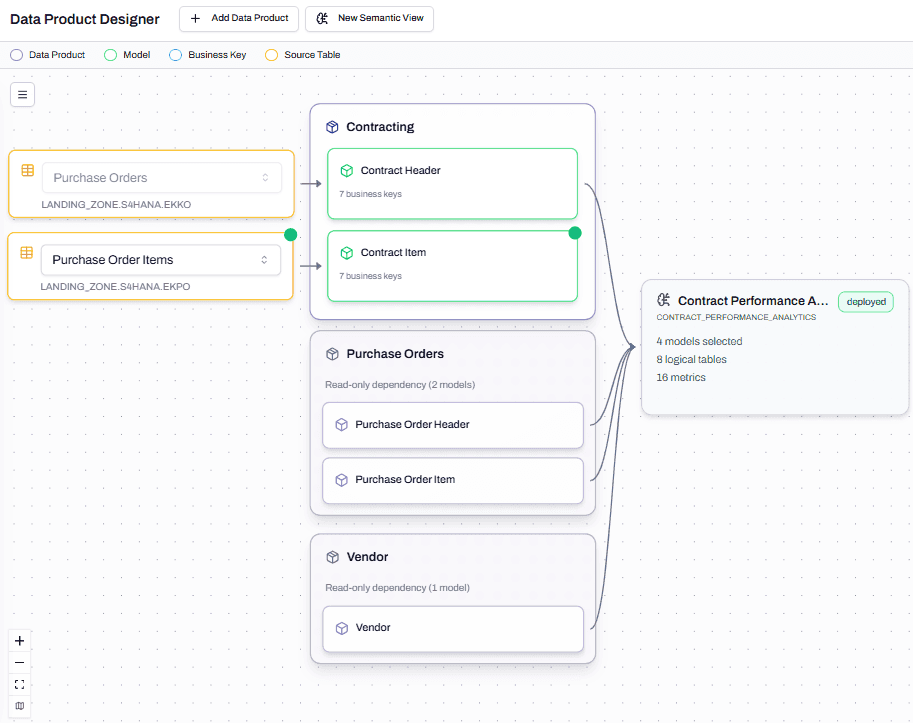
The dependency is read-only. You can use the referenced models in semantic views and metrics, but you can’t edit them from this data product. Edits to the referenced models happen on their own data product’s canvas.
When to reference vs duplicate
A general rule: reference when the model is shared business data; duplicate when each data product needs its own version.
Reference when:
- The model holds master data that’s the same everywhere (Vendor, Cost Centre, Material).
- You want one source of truth for a transactional model that several data products need to analyse.
- Storage and load cost matter and you don’t want to load the same source data twice.
Duplicate when:
- Each data product needs different filters or transformations on the same source.
- The data products are governed differently and need their own model copies for that reason.
- You’re prototyping and don’t want changes in one data product to affect another.
What happens at deployment
Referenced models don’t deploy from the data product that uses them. They deploy from the data product that owns them. Reference is a logical link, not a physical one.
This means: if Contracting references Purchase Order Header from Purchase Orders, you have to deploy Purchase Orders for the model to exist in Snowflake. Contracting’s deployment then uses that already-deployed model. Deploying Contracting alone won’t create Purchase Order Header.
Troubleshooting
The Add Data Product picker doesn’t show the data product I want
Likely cause: the data product hasn’t been saved, or your role doesn’t have access to it.
Resolution: confirm the data product appears on the Studio > Data Products list. If it’s missing, it hasn’t been saved. If it’s listed but not in the Add picker, check whether you’re filtering the picker by status.
A reference between two data products isn’t showing up on the canvas
Likely cause: the reference is configured on a model field but the depending data product hasn’t saved that change yet.
Resolution: open the model field that should reference the other data product’s model, confirm the reference is set, and save. Re-open the canvas if necessary.