Add a custom process within a domain
When the domain you need exists but the specific process you want isn’t there, add a custom process. This article covers both single-process creation and bulk import via TSV.
Applies to: Data team lead Detail level: Standard
Who this is for
You’re extending the platform’s process catalogue. Either you’re adding one specific process that the defaults don’t cover, or you’re loading a library of processes (an internal catalogue, an industry framework like APQC’s Process Classification Framework). You have access to Settings > Processes.
Before you start
You’ll need:
- The Data Product Studio installed and a role with access to Settings.
- The parent domain already created. If your process needs a domain that doesn’t exist, see Add a custom domain on the Configuration page first.
- A short code for each process you’re adding (must be unique within the account).
- A descriptive name and a one-sentence description for each process.
You should have already read:
The process create form has additional governance fields (Process Owner, Process Expert, Security Role, Data Ownership, Security Classification, Privacy Rating). These are optional at the structural level and are covered in the Govern stage. This article focuses on the fields you need to get a process created and usable in the wizard.
Add a single process
-
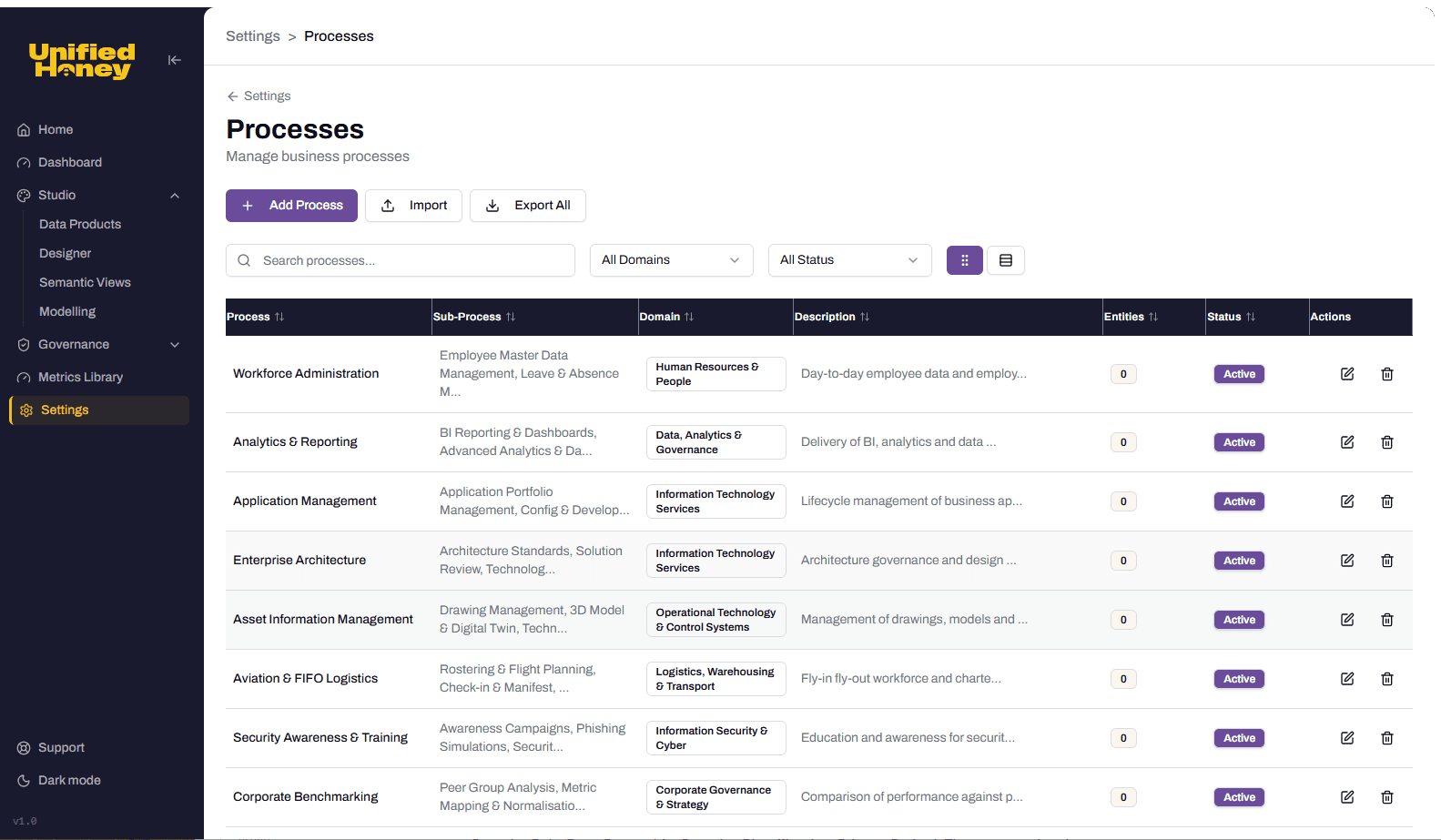
From the studio, open Settings > Processes. The page lists every built-in and custom process, filterable by domain and status.
-
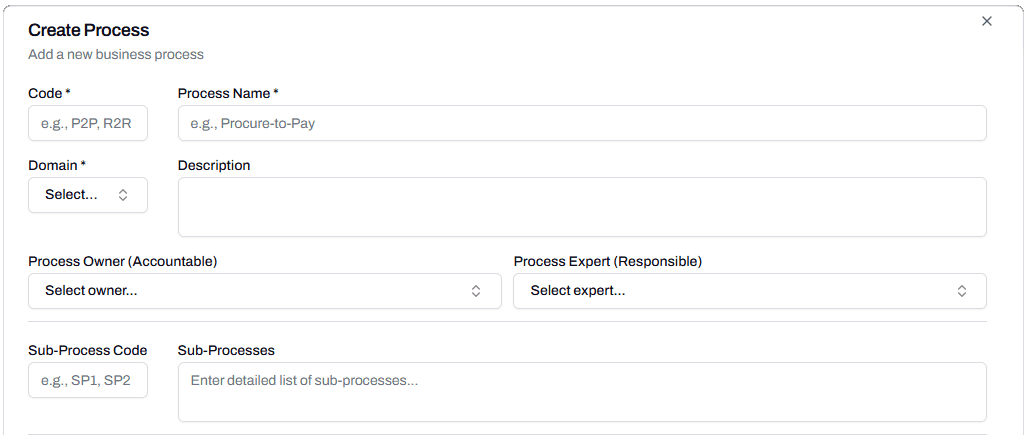
Click Add Process in the top left. The Create Process dialog opens.
-
Fill in Code. The code identifies the process in lists, exports, and imports. Use a short identifier such as P2P, R2R, or O2C. Codes must be unique across the account.
-
Fill in Process Name. The display name shown in dropdowns. Use the full business name: “Procure-to-Pay”, “Order-to-Cash”, “Hire-to-Retire”.
-
Pick the parent Domain from the dropdown. The list shows every active domain.
-
Fill in Description. One or two sentences describing what the process covers, the inputs it consumes, and the outputs it produces. Like the domain description, this is sent to Cortex as part of context, so detail helps. “End-to-end procurement of goods and services from requisition through payment” is enough.
-
Optional: fill in Sub-Processes. A comma-separated list of sub-processes the parent process includes. For Procure-to-Pay, that might be “Sourcing, Requisition Management, Purchase Order Processing, Invoice Verification, Payment Processing”. Sub-processes are descriptive only at this stage; they shape Cortex context but don’t create separate process entries. The Sub-Process Code field is optional and unused for most accounts.
-
Skip the Process Level Defaults section for now. The Security Role, Data Ownership, Security Classification, and Privacy Rating fields configure the governance defaults that flow down to data products generated from this process. They’re covered in the Govern stage articles. The process can be created without them.
-
Click Create. The process is added and appears in the Processes list with status Active.
Import a process library via TSV
When you have many processes to add, import them as a tab-separated values file.
-
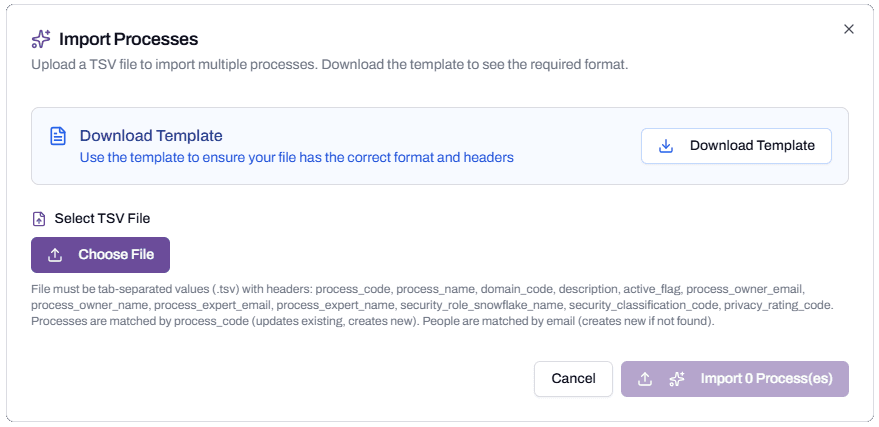
From Settings > Processes, click Import. The Import Processes dialog opens.
-
Click Download Template. The platform downloads a TSV file with the required headers.
-
Open the template in a spreadsheet application or a text editor. The required headers are:
process_code,process_name,domain_code,description,active_flag,process_owner_email,process_owner_name,process_expert_email,process_expert_name,security_role_snowflake_name,security_classification_code,privacy_rating_code.
-
Fill in the required fields for each process:
process_code,process_name,domain_code,description, andactive_flag. Thedomain_codemust reference an existing domain. -
Optional: fill in the governance fields (
process_owner_email,process_expert_email,security_role_snowflake_name,security_classification_code,privacy_rating_code). The import creates new people if the email doesn’t match an existing person. Security roles and classification codes must already exist; the import doesn’t create them. -
Save the file as TSV (tab-separated, not comma-separated).
-
In the Import dialog, click Choose File and select your TSV.
-
Click Import. The platform validates the file and shows a preview of the rows it will create or update. Processes are matched by
process_code: existing codes update, new codes create.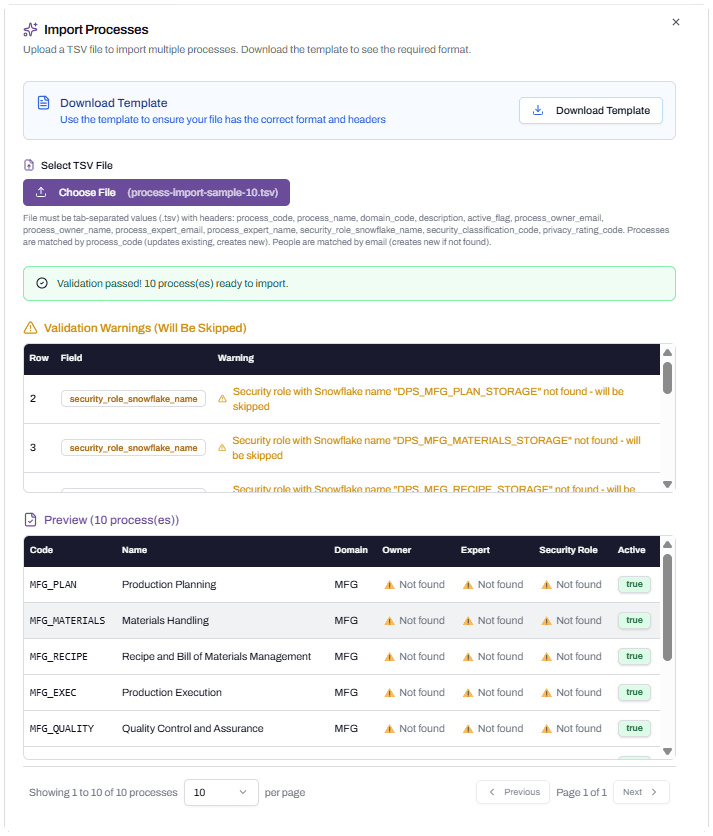
-
Confirm the preview and complete the import.
What happens next
New processes are immediately available in the Discovery Wizard. To use one, run the wizard, pick the parent domain, then pick the new process in the Process dropdown.
If a process was created without governance defaults, you’ll need to set them in the Govern stage before deploying data products generated from the process. See the Govern stage articles for the workflow.
Troubleshooting
Create button is disabled
Likely cause: a required field is empty, or the Code conflicts with an existing process.
Resolution: confirm Code, Process Name, Domain, and Description are filled. Check the Processes list for a duplicate code.
Before contacting support: capture the values in each field and a screenshot of the dialog.
TSV import fails with “Domain code not found”
Likely cause: a domain_code value in the file doesn’t match an existing domain.
Resolution: open Settings > Domains, confirm the domain code, and either fix the TSV or add the missing domain first.
Before contacting support: capture the failing row’s domain_code and a screenshot of your Domains list.
TSV import fails with “Security role not found” or similar
Likely cause: the file references a security role, classification, or privacy rating that doesn’t exist in the platform yet.
Resolution: either remove the value from the file (the process will import without it), or create the referenced security role, classification, or privacy rating first. Imports don’t auto-create governance reference data.
Before contacting support: capture the failing row, the field that failed, and the value that wasn’t found.
Process appears in the list but not in the wizard
Likely cause: the wizard was open before the process was created, or the process was created with active_flag = false.
Resolution: confirm the process is Active in the list. If it’s Inactive, edit and activate it. If it’s Active, close and reopen the wizard so the dropdown reloads.
Before contacting support: capture the process’s status, the time it was created, and the time the wizard was opened.
FAQs
What’s the right level of granularity for a custom process?
Match the granularity of the built-in processes. End-to-end business processes (Procure-to-Pay, Hire-to-Retire) work well. A single sub-step (Approve a single PO line) is too narrow. A whole department (Procurement) is too broad.
Should I include governance defaults when I create a custom process?
It depends on whether you’ve set up your security roles, classifications, and people lists. If those are configured, set the governance defaults at process creation so the cascade works automatically when data products are generated. If they’re not yet configured, leave the defaults blank and set them later in the Govern stage.
Can I deactivate a process I no longer need?
Yes. Edit the process and set the active flag to false. Inactive processes don’t appear in the wizard. The data products that were generated from the process keep working; only new generation is blocked.
How do I know what security_classification_code and privacy_rating_code to use in TSV imports?
Open Settings > Security Classifications and Settings > Privacy Rating to see the codes available in your account. The import expects the Code value (PUBLIC, INTERNAL, CONFIDENTIAL, RESTRICTED for security; NONE, PII, SENSITIVE_PII for privacy).
Related articles
- Prerequisite: Choose a domain and process
- Sibling: Add a custom domain on the Configuration page
- Next step: Discovery Wizard walkthrough
- Troubleshooting: Resolve generation failures in the studio
Search keywords
custom process, add process, settings processes, process code, process import, TSV import, sub-processes, business process, configuration page